ラベル Excel の投稿を表示しています。 すべての投稿を表示

2012/10/26

Hadoop + HiveからExcelへの帳票出力 (How to fetch data from Hadoop via Hive)


今回はHadoopおよびHiveを用いて抽出したデータを、Apache POIを使用してExcelシート上に出力します。

HiveはHiveQLというSQLに近い言語で開発が可能であり、JDBCドライバも提供されています。
過去の記事(Apache POI によるエクセルファイルの出力 その1)のソースコードを流用することで、極めて簡単にHadoopとExcelを連携させることができます。

Figure 1: Overall image

【バージョン】
HadoopおよびHiveはそれぞれ現時点で入手可能な最新の安定版を使用します。
  • Hadoop: Release 1.0.4 (12 October, 2012)
  • Hive:   Release 0.9.0 (30 April, 2012)
※Hive 0.9.0から、Hadoop1.xでの動作をサポートした様です。

また、HiveのJDBCドライバ(${HIVE_HOME}/lib/hive-jdbc-0.9.0.jar)がHadoop 1.xのAPIと不整合を起こしている様ですので、Hadoop 0.1xのhadoop-core-0.19.1.jarも併せて使用します。


【前準備】
サンプルプログラムのプロジェクトに、$HIVE_HOME/lib 配下のjarファイル、およびhadoop-core-0.19.1.jarを参照設定します。
※HiveのJDBCドライバ(hive-jdbc-0.9.0.jar)の依存するjarを特定していない為、今回は全てのjarを参照する事としています。

【実装】
ソースコードの変更は、DBコネクション生成に関わる部分のみです。


List 1: Main logic


package util;

import java.io.*;
import java.util.Iterator;
import java.sql.*;
import org.apache.poi.xssf.usermodel.*;
import org.apache.poi.ss.usermodel.*;


public class Ora2Excel {

  // db objects
  private Connection con;
  private Statement  stm;
  
  // poi objects
  private Workbook wbk;
  
  public Ora2Excel() throws SQLException {
    DriverManager.registerDriver(new org.apache.hadoop.hive.jdbc.HiveDriver());
  }

  public void openDb(String userId, String password, String connString) throws SQLException {
    con = DriverManager.getConnection(connString, userId, password);
    stm = con.createStatement();
  }
  
  public void closeDb() throws SQLException {
    stm.close();
    con.close();
  }
  
  public void openBook(String fileName) throws IOException {
    wbk = new XSSFWorkbook(fileName);
  }
  
  public void saveBook(String fileName) throws IOException {
    FileOutputStream out = new FileOutputStream(fileName);
    wbk.write(out);
    out.close();
  }
  
  public void closeBook() {
    wbk = null;
  }
  
  public void extract(String sheetName, String sql) throws SQLException {
    Sheet wsh = wbk.getSheet(sheetName);
    ResultSet rst = stm.executeQuery(sql);
    int colCount = rst.getMetaData().getColumnCount();
    
    // determine the start position: search "$start"
    int rowStart = 0;
    int colStart = 0;
    Iterator<Row> iRow = wsh.rowIterator();
    while (iRow.hasNext() && rowStart + colStart == 0) {
      Row currentRow = (Row) iRow.next();
      Iterator<Cell> iCol = currentRow.cellIterator();
      while (iCol.hasNext()) {
        Cell currentCell = (Cell) iCol.next();
        if (currentCell.getCellType() == Cell.CELL_TYPE_STRING  && currentCell.getStringCellValue().trim().equalsIgnoreCase("$start")) {
          rowStart = currentCell.getRowIndex();
          colStart = currentCell.getColumnIndex();
          break;
        }
      }
    }
    
    // get "template row"
    Row templateRow = wsh.getRow(rowStart);
    
    // set cell values
    int idxRow = rowStart;
    while (rst.next()) {
      wsh.shiftRows(idxRow, wsh.getLastRowNum()+1, 1);
      
      Row r = wsh.createRow(idxRow);
      for (int idxCol = templateRow.getFirstCellNum(); idxCol < templateRow.getLastCellNum(); idxCol++) {
        Cell c = r.createCell(idxCol);
        
        if (idxCol >= colStart && idxCol - colStart < colCount) {
          int idxDbCol = idxCol-colStart + 1;
          switch(rst.getMetaData().getColumnType(idxDbCol)){
          case Types.NUMERIC:
            c.setCellValue(rst.getDouble(idxDbCol));
            break;
          case Types.DATE:
              c.setCellValue(rst.getDate(idxDbCol));
            break;
          case Types.TIMESTAMP:
              c.setCellValue(rst.getDate(idxDbCol));
            break;
          default:
            c.setCellValue(rst.getString(idxDbCol));
          }
        } else if (templateRow.getCell(idxCol).getCellType() == Cell.CELL_TYPE_FORMULA){
          c.setCellFormula(templateRow.getCell(idxCol).getCellFormula());
        } else if (templateRow.getCell(idxCol).getCellType() == Cell.CELL_TYPE_NUMERIC){
          c.setCellValue(templateRow.getCell(idxCol).getNumericCellValue());
        } else if (templateRow.getCell(idxCol).getCellType() == Cell.CELL_TYPE_STRING){
          c.setCellValue(templateRow.getCell(idxCol).getStringCellValue());
        } 
        c.setCellStyle(templateRow.getCell(idxCol).getCellStyle());
        
      }
      idxRow++;
    }
    rst.close();
    
    // remove the template row.
    wsh.removeRow(templateRow);
    wsh.shiftRows(idxRow,  wsh.getLastRowNum()+1, -1);
    
    // calculate formula cells
    XSSFFormulaEvaluator.evaluateAllFormulaCells((XSSFWorkbook) wbk);
  }
}

【テスト用ソース(呼び出し部)】
上記クラスを呼び出す側の例を以下に示します。


List 2: Calling Main Logic


import util.Ora2Excel;

public class Test1 {

  public static void main(String[] args) throws Exception {
    Ora2Excel o2x = new Ora2Excel();
    
    o2x.openDb("", "", "jdbc:hive://HiveServer:10000/default");
    
    o2x.openBook("c:\\template.xlsx");
    o2x.extract("Sheet1", "select deptno, empno, ename, job, mgr, hiredate, sal, comm from emp order by deptno, empno");
    o2x.saveBook("c:\\result.xlsx");
    o2x.closeBook();
    
    o2x.closeDb();
  }
}


HiveのJDBCドライバはまだ開発途上ではありますが、Hadoopから帳票を出力する際には極めて効率的なツールであると言えます。

参考URL:
https://cwiki.apache.org/Hive/hiveclient.html


[Summary]
Hive provides JDBC driver.  List 1 shows how to get data from Hadoop via Hive.

The version of Hadoop and Hive are:
  • Hadoop: Release 1.0.4 (12 October, 2012)
  • Hive:   Release 0.9.0 (30 April, 2012)
${HIVE_HOME}/lib/hive-jdbc-0.9.0.jar needs other jar files under ${HIVE_HOME}/lib.
Since it needs org/apache/hadoop/io/Writable that is not included in Hive 0.9.0, this time I bring hadoop-core-0.19.1.jar from another project.
To run the source code, you have to add these jar files above as External JAR.

Please see Export to Excel file via Apache POI, Part 1 for your reference.

2012/02/08

帳票ツールの独自開発 (Create your own reporting tool)

OTN にて、ライセンス料が取り上げられていました。数年越しの話題のようです。
BIP way too expensive. Check out BIP in $$$ terms.
https://forums.oracle.com/forums/thread.jspa?threadID=977589

Oracle BI Publisherに限らず、帳票ツールの導入に際しては初期ライセンス費用に加えてサポート費用も要します。また、帳票ツールの使用経験者は市場にほとんど流通していませんので、採用費用、または帳票ツールの使用方法そのものを学ぶための準備期間、場合によってはベンダーコンサルの費用も計上しなければなりません。
これらの帳票ツール導入に関わる初期費用が導入効果を(短期的とはいえ)上回ってしまうため、一定規模以上のプロジェクトでない限り、導入が見送られることが多いのも実情です。
※なお、Oracle BIには Oracle BI SE One という廉価版ライセンスも用意されています。BI Publisher もこのライセンス内に含まれています。

このような状況では、「社内用の簡単なレポートツールでも作るか」という話も出かねません。実際にサンプルを作ってみました。
高機能は必要なく、テンプレートに記載したSQLで単一のDBを検索した結果をテンプレート(エクセル)上に出力するだけ、という仕様です。

【画面概要】
以下の様なアプリを想定します。

  • サーバに配置されたテンプレートファイルがブラウザ上で一覧される。
  • ユーザがブラウザ上のファイルを選択すると、テンプレートファイルに応じたパラメータ設定画面が開く
  • パラメータを設定し、「Export」ボタンを押すとファイルがダウンロードされる。


【テンプレートファイル】
テンプレートファイルは以下の様に2つのシートで構成される仕様とします。
  • シート「$template」は出力結果が展開されるシートです。
  • シート「$property」にはテンプレートの説明や、バインド変数として受け渡すパラメータの定義を記載します。

画面写真を撮りがてら、ASP.NET (C#)でざっくりとコーディングしてみましたが、数時間で一通りの動作を実装できます。
(※データ抽出およびエクセルシートへの展開部分については過去の記事(エクセルファイルのバッチ出力 その3)のソースを流用しました。)
ロールによるアクセス権限制御、監査用のログ出力などの最低限の機能を考慮しても、設計を含め概ね1人月程度あれば簡易的なツールは構築できそうです。

当初は「帳票ツールを自作するコストを考えれば、ライセンスを購入する方が絶対に有利」という流れの記事を書く予定でしたが、想定に反して、要求される非機能要件や帳票要件が限られているという前提であれば、自作も検討に値するという結果になりました。
※社内での工数単価や稼働をどのように計上するかは各企業次第ですので、自主開発が有利か否かの判断は一概には行えません。

自主開発版のツールから、性能要件や機能要件に合わせて商用ツールの導入を検討するというステップも考えられます。


[Summary]
BIP way too expensive. Check out BIP in $$$ terms.
https://forums.oracle.com/forums/thread.jspa?threadID=977589


BI Publisher (or other reporting tools) costs you certain amount of money.
If you think it is too expensive, then DIY.  If your requirements are not so complicated, and the workload is not heavy, it is worth considering DIY a simple, your own reporting tool.


I've created a sample tool with ASP.NET (C#).  It took about four hours to make this - I suppose you may need less than one man-month to create your original reporting tool.


The figure above shows how the sample works.

2012/01/17

Apache POI によるエクセル帳票出力の並列実行 その2 (Apache POI parallel processing, Part 2)


前回の並列実行の検証では、3スレッドまでは高い性能向上を示した後、伸び率が低下することが確認されました。
今回は、この時のOS統計を確認します。

【CPU】
CPU使用率の推移は以下の通りです。
※なお、検証環境の物理コア数は4です。
Figure 3: CPU usage

設定したスレッド数以上のコアが使用されていることが確認できます。これはJVM自身の挙動に関わるオーバーヘッドであり、これらを含めたスレッド数が物理コア数を超えたことで4スレッド時点で性能の伸び率が鈍化し始めたと想定されます。
※本記事ではこれ以上の調査は行いません。
過去にCOM経由でエクセルを操作した際の値と比較すると、CPU使用率が非常に低く抑えられています。性能の伸び率の高さは、このCPU使用率の余裕から生まれていると考えられます。

プロセッサ・キュー(Processor Queue Length)の値は6スレッドから目立ち始め、7スレッド以降は過負荷であることを示しています。
Figure 4: Processor Queue Length

参考まで、コンテキスト・スイッチ(Context Switches/sec)の発生も確認します。COM経由でExcelを操作した際の値と比較すると、10分の1以下で推移しています。
Figure 5: Context Switches / sec


【メモリ】
スレッド数の増加に伴って開きメモリが減少しますが、5GB以上の余裕があります。
グラフは割愛しますが、ページングも発生しておらず、問題は見られません。
Figure 6: Available Memory (MB)

【ディスク】
ディスクへの負荷はそれほど高くありません。グラフは割愛しますが、キューの待機も発生していません。
Figure 7: Disk usage

【GC】
今回はヒープを十分に確保(1GB)したため、Full GCは発生していません。参考まで、以下にJVMの推移を示します。
Figure 8: GC

※NEWについては改善の可能性もありますが、今回の検証ではこれ以上のチューニングは行わないこととします。

【結果】
以前の検証でエクセルによる帳票出力(COM経由での操作)を行ったときと同様、CPUの処理容量に依存しやすい傾向が確認されました。
※参照:「リンク」

COM経由でエクセルを操作する場合と比較すると、単位時間当たりの出力性能はApache POIが大幅に上回っています。
また、Apache POIを使用する場合はサーバ側のOSを選ばない点、およびサーバ側にエクセルのライセンスが不要である点も優位であるといえます。
しかしながら、Apache POI(またはその他のライブラリ)を使用する際には機能制限に留意する必要があります。現行バージョンの3.7ではXSLX形式の条件付書式に対応していない(次期3.8で対応予定)等、ユーザ要件を満たせない場合があります。エクセルのもつ機能・表現力を十分に発揮させたい場合には、これらの機能制限が不利となります。

帳票要件の複雑さと処理性能や実装環境を考慮し、Excelによる実装とApache POI等の外部ライブラリでの実装を使い分けることをお勧めします。
管理面からは「実装方式を一本化する」という方針が魅力的に見えることがありますが、実際には機能制限の回避や性能問題の解消などに不要な出費を強いる原因となりがちです。技術者の確保も容易な分野ですので、相当の理由がない限り、一本化は避けることをお勧めします。


[Summary]
OS statistics shows that Apache POI file processing is CPU bound.Please see Figure 3 to 7.
For your reference, Figure 8 shows JVM GC statistics.


The advantages of Apache POI:  The performance Apache POI manipulation is much faster than the performance of COM-Excel manipulation.  In addition, you do not need the Excel licence on the server side.
The disadvantage  of Apache POI: Apache POI does not support all the functions that Excel provides.

2012/01/12

Apache POI によるエクセル帳票出力の並列実行 その1 (Apache POI parallel processing, Part 1)


前回のサンプルプログラムについて、並列処理で単位時間当たりの処理能力の向上を図り、どの程度リニアに性能が向上するかを検証します。

【検証の方法について】
通常の運用であれば、スケジューラのジョブを並列実行させますが、今回のサンプルではプログラム内で複数スレッドを生成することで検証を行います。
検証環境は「エクセルファイルのバッチ出力 その5」と同様です。
※本記事は帳票出力の並列実行をプログラム内で実装することを推奨しているわけではありません。エミュレートが目的です。

【サンプルソース(呼び出し部)】
サンプルのソースの内、呼び出し側を以下の様に修正します。
並列度はソース内のNUM_THREADSで指定し、ExecutorServiceを使用して実行スレッド数と同数のスレッドプールを生成します。
並列度は1から8(論理コア数)まで変化させ、各スレッドで1000ファイルを出力するまでに経過した時間を計測します。

List 1:


public class Test2 {
  private static final int NUM_THREADS = 1;

  public static void main(String[] args) {
    System.out.println(new Date());
    
      ExecutorService executor = Executors.newFixedThreadPool(NUM_THREADS);
      
      for(int j=0; j < NUM_THREADS; j++){
      executor.execute(new Runnable(){
        public void run() {
        long timeStarted = System.currentTimeMillis();
          try {
          Ora2Excel o2x = new Ora2Excel();
          
          o2x.openDb("scott", "tiger", "jdbc:oracle:thin:@windows2003srv:1521:orcl");
          
          for (int i = 0; i <1000; i++) {
            o2x.openBook("c:\\template.xlsx");
            o2x.extract("Sheet1", "select deptno, empno, ename, job, mgr, hiredate, sal, comm from emp order by deptno, empno");
            o2x.saveBook("c:\\temp\\result_" + Thread.currentThread().getId() + "_" +  i + ".xlsx");
            o2x.closeBook();
          }
          
          o2x.closeDb();
          System.out.println("finish: " + Thread.currentThread().getId() + "=" + (System.currentTimeMillis()- timeStarted));
          
        } catch (Exception e) {
          e.printStackTrace();
        }
        }
      });
    }
      executor.shutdown();
  }   
}

【サンプルソース(本体部)】
本体部のソースに変更はありません。ソースは「Apache POI によるエクセル帳票出力の並列実行 その1」を参照してください。

【結果】
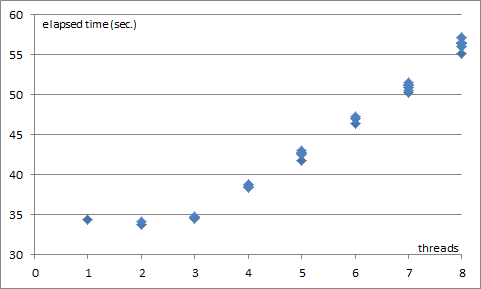
出力性能の結果は以下の通りとなりました。以下のグラフは、横軸が多重度(スレッド数)を表し、縦軸が各スレッドの処理完了時間(秒)を表します。1多重から3多重までは処理時間はほぼ変動せず、約35秒で推移していますが、4多重以降は処理時間が増加していることが確認できます。
Figure 1: Elapsed Time

上記の結果を、1秒当たりの出力ファイル数に換算した結果を以下に示します。縦軸は1秒当たりの出力ファイル数です。
Figure 2: Performance Result

1多重での出力性能は1秒間に29ファイルです。2多重及び3多重ではほぼ100%の性能向上が確認できます。
4多重(物理コア数に同じ)でも89%とまずまずの成績です。
5多重から先は性能が頭打ちになり、8多重では61%の性能向上となっています。


C#からCOM経由でExcelを操作した場合(「エクセル帳票出力の並列実行 その1」を参照)と比較しても性能向上の割合が優れています。

次回はOS統計を確認します。


[Summary]
In this post, we'll see the performance of Apache POI with parallel (multi thread) processing.

[Environment]

[Test source]
In the ordinary batch system, you may run programs by job scheduler parallel.  In this test, I implement multi thread processing within the sample program.  Please refer List 1.

[Source (main part)]
No changes have been made.  Please refer to Export to Excel file via Apache POI, Part 1 for the source code.

[Result]
In Figure 1 and Figure 2, the bottom axis represents the number of threads.
Figure 1 shows the elapsed time for each thread.
Figure 2 shows the output performance.  Single thread performance is 29 files per sec.  Until three thread, it keeps almost 100% performance increase.

In the next post, we read the OS statistics.

2012/01/05

Apache POI によるエクセルファイルの出力 その2 (Export to Excel file via Apache POI, Part 2)


前回のサンプルプログラムの性能を確認します。

CPU性能等の検証環境については「エクセルファイルのバッチ出力 その5」を参照してください。


【呼び出し側プログラムの修正】
テストプログラム側を以下の様に修正し、100ファイルを出力する際の処理時間を計測します。


List 3:


public class Test1 {

  public static void main(String[] args) throws Exception {
    long timeStarted = System.currentTimeMillis();

    Ora2Excel o2x = new Ora2Excel();
    
    o2x.openDb("scott", "tiger", "jdbc:oracle:thin:@windows2003srv:1521:orcl");
    
    for (int i = 0; i <100; i++) {
      long lapTime = System.currentTimeMillis();
      o2x.openBook("c:\\template.xlsx");
      System.out.println("[file open] " + (System.currentTimeMillis()- lapTime));
      
      lapTime = System.currentTimeMillis();
      o2x.extract("Sheet1", "select deptno, empno, ename, job, mgr, hiredate, sal, comm from emp order by deptno, empno");
      System.out.println("[extract] " + (System.currentTimeMillis()- lapTime));
      
      lapTime = System.currentTimeMillis();
      o2x.saveBook("c:\\temp\\result_" + i + ".xlsx");
      System.out.println("[save] " + (System.currentTimeMillis()- lapTime));
      
      lapTime = System.currentTimeMillis();
      o2x.closeBook();
      System.out.println("[close] " + (System.currentTimeMillis()- lapTime));
    }
    
    o2x.closeDb();
    System.out.println("[total] " + (System.currentTimeMillis()- timeStarted));
  }
}


上記の処理結果ログを集計し、1ファイルあたりの平均処理時間を算出した結果は以下の通りです。最も長い処理イベントはテンプレートファイルを開く部分(file open)であることがわかります。
Figure 4: Events

上記の結果は100ファイルを出力した際の平均値ですが、実際には、1ファイル目と2ファイル目以降の処理時間は大きく異なります。以下のグラフは縦軸が各イベントが1ファイル毎に要する時間、横軸が処理ファイルの順番を表しています。2ファイル目以降の処理時間が大きく低減していることが分かります。
Figure 5: Elapsed time per file

1ファイル目ではテンプレートファイルを開くのに1.12秒、全体(1ファイルあたり)で約1.8秒要していましたが、2ファイル目以降、順次0.3秒程度まで低減し、1ファイルあたりの処理時間も平均で0.07秒まで低減しています。
単純に換算すると秒間の出力性能は約14ファイルとなりますので、1万ファイルを出力する場合はおよそ12分弱と推計されます。(2012-01-11 削除)

次回は並列実行した場合の検証を行います。

【2012-01-11追記】
今回の検証ではJVMの起動(および初回のロード)に伴うオーバーヘッドが経過時間に含まれてしまっています。このため、たとえば起動済みJVMで処理を行った場合や、出力するファイル数を増加させた上で平均をとった場合には、性能はより向上します。手元で改めて1000ファイルを出力した場合、1ファイルあたりの出力時間は約27.5ファイルとなりました。


[Summary]
The sample program shown in List 3 outputs 100 excel files (The original source is in the last post).


Figure 4 shows that the longest event is opening the template file - it takes about 35 millisecond per a file.
Figure 5, the left axis shows the elapsed time for each event per a file. The bottom axis shows the sequence number of the file produced. This graph shows that the first file takes much longer - around 1.8 second - than the following files.


[January, 11, 2012: append]
The elapsed time includes JVM start up overhead.  This overhead had reduced the performance.  The more files, the Additional test result: 36.27 sec. to produce 1000 files - 27.5 files per sec.

2011/12/29

Apache POI によるエクセルファイルの出力 その1 (Export to Excel file via Apache POI, Part 1)

以前、C#でエクセル形式のファイルへの出力を検証しました。今回はJava環境での検証を行います。(「エクセルファイルのバッチ出力 その1」を併せて参照してください)。

【概要】
全体の概要は以前の検証と変更ありません。参考まで、概要図を再掲します。
Figure 1: Overall image

【環境】
サンプルはJavaで実装します。そのほかの環境は以下の通りです。
  • 使用ライブラリ: Apache POI 3.7 (XSSF)
  • Excel: Excel2010
  • データベース:Oracle Database 11gR2 (11.2.0.1)
  • DB接続:Oracle JDBC Thinドライバ

【ソース(本体部)】
ソースの例を以下に示します。データの抽出、およびエクセルへの出力を定義します。
この例では、レコードセットをnextで移動する毎に、テンプレートの行をコピーおよび挿入し、セル毎にデータを挿入します。

List 1: Main logic


package util;

import java.io.*;
import java.util.Iterator;
import java.sql.*;
import org.apache.poi.xssf.usermodel.*;
import org.apache.poi.ss.usermodel.*;


public class Ora2Excel {

  // db objects
  private Connection con;
  private Statement  stm;
  
  // poi objects
  private Workbook wbk;
  
  public Ora2Excel() throws SQLException {
    DriverManager.registerDriver(new oracle.jdbc.driver.OracleDriver());
  }

  public void openDb(String userId, String password, String connString) throws SQLException {
    con = DriverManager.getConnection(connString, userId, password);
    stm = con.createStatement();
  }
  
  public void closeDb() throws SQLException {
    stm.close();
    con.close();
  }
  
  public void openBook(String fileName) throws IOException {
    wbk = new XSSFWorkbook(fileName);
  }
  
  public void saveBook(String fileName) throws IOException {
    FileOutputStream out = new FileOutputStream(fileName);
    wbk.write(out);
    out.close();
  }
  
  public void closeBook() {
    wbk = null;
  }
  
  public void extract(String sheetName, String sql) throws SQLException {
    Sheet wsh = wbk.getSheet(sheetName);
    ResultSet rst = stm.executeQuery(sql);
    int colCount = rst.getMetaData().getColumnCount();
    
    // determine the start position: search "$start"
    int rowStart = 0;
    int colStart = 0;
    Iterator<Row> iRow = wsh.rowIterator();
    while (iRow.hasNext() && rowStart + colStart == 0) {
      Row currentRow = (Row) iRow.next();
      Iterator<Cell> iCol = currentRow.cellIterator();
      while (iCol.hasNext()) {
        Cell currentCell = (Cell) iCol.next();
        if (currentCell.getCellType() == Cell.CELL_TYPE_STRING  && currentCell.getStringCellValue().trim().equalsIgnoreCase("$start")) {
          rowStart = currentCell.getRowIndex();
          colStart = currentCell.getColumnIndex();
          break;
        }
      }
    }
    
    // get "template row"
    Row templateRow = wsh.getRow(rowStart);
    
    // set cell values
    int idxRow = rowStart;
    while (rst.next()) {
      wsh.shiftRows(idxRow, wsh.getLastRowNum()+1, 1);
      
      Row r = wsh.createRow(idxRow);
      for (int idxCol = templateRow.getFirstCellNum(); idxCol < templateRow.getLastCellNum(); idxCol++) {
        Cell c = r.createCell(idxCol);
        
        if (idxCol >= colStart && idxCol - colStart < colCount) {
          int idxDbCol = idxCol-colStart + 1;
          switch(rst.getMetaData().getColumnType(idxDbCol)){
          case Types.NUMERIC:
            c.setCellValue(rst.getDouble(idxDbCol));
            break;
          case Types.DATE:
              c.setCellValue(rst.getDate(idxDbCol));
            break;
          case Types.TIMESTAMP:
              c.setCellValue(rst.getDate(idxDbCol));
            break;
          default:
            c.setCellValue(rst.getString(idxDbCol));
          }
        } else if (templateRow.getCell(idxCol).getCellType() == Cell.CELL_TYPE_FORMULA){
          c.setCellFormula(templateRow.getCell(idxCol).getCellFormula());
        } else if (templateRow.getCell(idxCol).getCellType() == Cell.CELL_TYPE_NUMERIC){
          c.setCellValue(templateRow.getCell(idxCol).getNumericCellValue());
        } else if (templateRow.getCell(idxCol).getCellType() == Cell.CELL_TYPE_STRING){
          c.setCellValue(templateRow.getCell(idxCol).getStringCellValue());
        } 
        c.setCellStyle(templateRow.getCell(idxCol).getCellStyle());
        
      }
      idxRow++;
    }
    rst.close();
    
    // remove the template row.
    wsh.removeRow(templateRow);
    wsh.shiftRows(idxRow,  wsh.getLastRowNum()+1, -1);
    
    // calculate formula cells
    XSSFFormulaEvaluator.evaluateAllFormulaCells((XSSFWorkbook) wbk);
  }
}

【テスト用ソース(呼び出し部)】
上記クラスを呼び出す側の例を以下に示します。


List 2: Calling Main Logic


import util.Ora2Excel;

public class Test1 {

  public static void main(String[] args) throws Exception {
    Ora2Excel o2x = new Ora2Excel();
    
    o2x.openDb("scott", "tiger", "jdbc:oracle:thin:@windows2003srv:1521:orcl");
    
    o2x.openBook("c:\\template.xlsx");
    o2x.extract("Sheet1", "select deptno, empno, ename, job, mgr, hiredate, sal, comm from emp order by deptno, empno");
    o2x.saveBook("c:\\result.xlsx");
    o2x.closeBook();
    
    o2x.closeDb();
  }
}


【テンプレートファイル】
テンプレートファイルは、前回使用したファイルからスパークラインを除去したものを使用しています(詳細はダウンロードしたファイルの内容を参照して下さい)。
※現状ではApache POIがスパークラインに対応していないため。

データを出力する開始点に"$start"を入力します。
Figure 2: Template file

出力結果のイメージは以下の通りです。
Figure 3: Result


次回からは性能検証、および性能改善の方策を検討します。

エクセルのテンプレートファイル、結果ファイルはここからダウンロードできます。
※上記のソースはサンプルです。例外処理などは除外しています。
※上記のソースおよびファイルを使用したことによる一切の結果について、作成者は責任を負いません。

[Summary]
The sample above shows how to export data onto Excel sheet via Apache POI (former Jakarta POI).
cf. Excel file processing, Part 1


[Outline]
Overall image is shown in Figure 1 - same as the past post.


[Environment]
Source is in Java. Environment are as follows:
  • External Library: Apache POI 3.7
  • Excel: Excel2010
  • Database: Oracle Database 11gR2 (11.2.0.1)
  • DB connection: Oracle JDBC Thin Driver

[Source (main part)]
Please see List 1.  The sample class retrieves rows from database, and set the data onto workbook cell by cell.


[Test source]
Please see List 2.


[Template file]
Please see Figure 2 (Template file) and 3 (Output).  In the template, you set the report header, number format, formula and so on.  The start position, the top-left position, of data area is defined by "$start".  Please refer to the sample file for details.

2011/10/26

エクセル帳票出力の並列実行 その2 (Excel file parallel processing, Part 2)


前回の並列実行の検証では、物理コア数までは並列度にしたがって出力性能が向上するものの、伸び率については、並列度が4倍(1→4)に増えても処理性能は2.3倍(秒間4.5ファイル→10.3ファイル)程度の伸び率にとどまることが確認されました。
今回は、この事象をOS統計から確認します。

【CPU】
CPU使用率の推移は以下の通りです。
※なお、検証環境の物理コア数は4です。
Figure 3: CPU usage

1スレッドでの実行においても、コアをまたがって処理負荷が分散されています。常に5つのコアがそれぞれ60%程度の使用率で推移しており、全体での使用率は約40%(300% ÷ 800%)です。従って、CPU容量に対する伸びしろはこの時点で最大2.5倍しか残されていないと言えます。

2スレッドでは、すべてのコアに処理負荷がかかっています。各コアの使用率はそれぞれ約60%、全体としての使用率も同じく60%です。
4スレッドで各コアの使用率が90%を超えます。また、5スレッド以降のCPU使用率の動きは、他のボトルネックによってCPUの動きが妨げられている可能性を示しています。

実行モードの内訳を確認すると、Priviledged Time (sys)が2割近くを占めています。
Figure 4: CPU mode

コンテキスト・スイッチ(Context Switches)の状態は以下の通りです。以前の検証でも高い値を記録していましたが、今回も同様です。
Figure 5: Context Switches

プロセッサ・キュー(Processor Queue Length)の値は4スレッドから目立ち始め、5スレッド以降は過負荷であることを示しています。
Figure 6: Processor Queue Length

【メモリ】
スレッド数の増加に伴って開きメモリが減っていきますが、6GB以上の余裕があります。
グラフは割愛しますが、ページングも発生しておらず、問題は見られません。
Figure 7: Memory

【ディスク】
4スレッドまでは問題ありません。5スレッド以降はDisk Timeの値が増加し始めます。
Figure 8: Disk Time (1 - Idle Time)

同様に、5スレッド以降、キューの滞留が徐々に増えています。
Figure 9: Disk Queue Length

【結論】
エクセルによる帳票出力(COMによる操作)はCPUの処理容量に依存しやすいと言えます。
また、エクセルのアプリケーション自体が10以上のプロセスを保持し、マルチスレッド処理を行っているため、エクセルのアプリケーションそのものを複数、並列に処理する場合でも処理性能が並列度に対してリニアに向上しないという点に留意する必要があります。


[Summary]
In the last post, multi thread processing had got poor result.  The maximum performance is 10.3 files per sec (130% increase) with four threads.
OS statistics explains the detail of this problem.


[CPU]
Figure 3 shows the CPU usage, from 1 to 8 threads.  The single thread test case(left side) uses 5 cores.  Overall CPU usage is about 40%, so the remained CPU resource is 60%.  This means that maximum performance increase ratio is 150% more ( 60 / 40 = 1.5).


Same as the past test (the original sample program), Priviledged Time (sys) gets higher than the ordinary level (Figure 4).
Context Switches seems bad in Figure 5.  Its trend is mostly same as CPU usage.
Processor Queue Length gets high from 5 to 8 threads (Figure 6).  This means too much threads causes collision and it leads lower performance.


[Memory]
Figure 7.  There seems no problem.


[Disk]
Figure 8 and 9.  Through 1 to 4 threads, no problem.  From 5 threads, Disk Time and Disk Queue Length get higher.


[Conclusion]
Excel file processing (Excel COM operation) is CPU bound.
Excel application itself manages more than 10 processes within , and perform multi thread processing.  This architecture might increase the single running performance though, there's few room to increase with running Excel application in parallel.

2011/10/25

エクセル帳票出力の並列実行 その1 (Excel file parallel processing, Part 1)

これまでの検証で、1ファイルあたりの処理時間は0.22秒まで短縮されました。処理性能は1秒当たり4.5ファイルとなります。
今回は並列処理で単位時間当たりの処理能力の向上を図り、どの程度リニアに性能が向上するかを検証します。

【検証の方法について】
通常の運用であれば、スケジューラのジョブを並列実行させますが、今回のサンプルではプログラム内で複数スレッドを生成することで検証を行います。
検証環境は「エクセルファイルのバッチ出力 その5」と同様です。なお、今回はデバッグモードではなく、アプリケーション(.exe)を直接実行します。

【サンプルソース(GUI部)】
サンプルのソースの内、呼び出し側(GUI側)を以下の様に修正します。並列度はスライダーで指定し、並列度を1から8(論理コア数)まで変化させます。
並列実行はSystems.Threads.Tasksに含まれるParallel.Forを使用します。スレッド毎に個別のオブジェクト(エクセルおよびDBセッションを保持する)を起動し、スレッド間の競合回避を図ります。
Figure 1: Form

List 1:

using System;
using System.Collections.Generic;
using System.ComponentModel;
using System.Data;
using System.Drawing;
using System.Linq;
using System.Text;
using System.Windows.Forms;
using Util;
using System.Diagnostics;
using System.Threading;
using System.Threading.Tasks;


namespace WindowsFormsApplication1
{
    public partial class Form1 : Form
    {
        public Form1()
        {
            InitializeComponent();
        }

        private void button1_Click(object sender, EventArgs e)
        {
            int num_threads = trackBar1.Value;
            List<Util.Ora2Excel> lst = new List<Util.Ora2Excel>();

            // initialize
            for (int i = 0; i < num_threads; i++)
            {
                lst.Add(new Util.Ora2Excel());
                lst[i].OpenDb(txtUser.Text, txtPassword.Text, txtConnString.Text);
                lst[i].InitExcel();
            }

            DateTime startTime = DateTime.Now;

            Parallel.For(0, num_threads, threadID =>
            {
                for (int idx = 0; idx < 100; idx++)
                {
                    lst[threadID].OpenBook(@"c:\template_emp.xlsx", true);
                    lst[threadID].Extract(txtSql.Text, txtSheet.Text);
                    lst[threadID].SaveBook(@"c:\" + threadID.ToString() + @"\result_emp" + "_" + threadID.ToString() + "_" + idx.ToString() + ".xlsx");
                    lst[threadID].CloseBook();
                }
            });
            
            // write the result
            System.IO.StreamWriter sw = new System.IO.StreamWriter(@"c:\testResult.log", true);
            sw.WriteLine("threads: " + num_threads.ToString() + ", "  + (DateTime.Now - startTime).ToString());
            sw.Close();
            
            // close objects
            for (int j = 0; j < num_threads; j++)
            {
                lst[j].QuitExcel();
                lst[j].CloseDb();
            }

        }

        private void trackBar1_Scroll(object sender, EventArgs e)
        {
            lblThreads.Text = "threads: " + trackBar1.Value.ToString();
        }
    }
}

【サンプルソース(DLL部)】
DLL部のソースに変更はありません。ソースは「エクセルファイルのバッチ出力 その3」を参照してください。

結果は以下の通りです。4多重まで増加させた場合でも、シングルスレッド実行の場合の約2倍の性能向上にとどまりました。秒間10.3ファイルの出力性能です。性能の向上率は高いとは言えません。
また、4コア以降、多重度を上げるにつれて性能が劣化しています。
Figure 2: Performance result

次回はOS統計を確認します。


[Summary]
In this post, we'll see how much we can increase Excel file processing performance by parallel (multi thread) processing.


[Environment]
Please refer to Excel file processing, Part 5.


[Sample source (GUI)]
In the ordinary batch system,you may run programs by job scheduler parallel.  In this test, I implement multi thread processing within the sample program.  Please refer Figure 1 and List 1.  The slider at the bottom of the form specifies the number of threads.  Each thread owns individual database session and Excel object.


[Sample source (DLL)]
No changes have been made.  Please refer to Excel file processing, Part 3 for the source code.


[Result]
As shown in Figure 2, the result is not so good.  The output performance hit the peak with four threads.  The peak performance is 10.3 files per sec. (100% increase from single thread performance)


In the next post, we read the OS statistics.

2011/10/17

エクセルファイルのバッチ出力 その6 (Excel file processing, Part 6)

ここで一度、サンプルプログラム実行時のマシン負荷を確認します。
今回はプログラムを素で実行し(デバッグモードではなく、EXEを直接起動)、OS統計を収集しました。
統計の取得間隔は2秒です。

【CPU】
論理8コア(物理4コア)の内、コアを4つ使用しています。各コアの使用率は50%程度で推移しており、全体としてのCPU使用率は約25%です。
Figure 11: CPU usage during the Excel file processing

CPU使用率の内訳を確認します。全体でのPrivileged TimeとUser Time(sys、user)の使用率は以下の通りです。Privileged Timeが若干ですが目立ちます。
Figure 12: CPU mode

念のためコンテキストスイッチ(Context Switches)を確認します。高い値で推移しています。Excel 2010では過去のバージョンよりも多くのスレッドが使用されているため、今回のような使用パターンでは値が高止まりしやすいと推測されます。
Figure 13: Context switches


また、エクセルのプロセスを抽出したCPUの使用率の推移は以下の通りです。約200%で推移しており、前述のCPU使用率(全体で25%)と概ね一致しています。
Figure 14: CPU usage of Excel process


今回はDBサーバが同一機材上のVMに構築されているため、VMのCPU使用状況も確認します。最大でも(800%中)約6%と、ほぼ凪であり、影響は概ね無視できると考えられます。
Figure 15: CPU usage of the VM processes


【メモリ】
メモリは余裕のある状態です。グラフは割愛しますが、ページングも発生しておらず、問題は認められません。
Figure 16: Memory usage


【ディスク】
ディスクも余裕のある状態です。問題は認められません。
Figure 17: Disk usage

今回の検証では、エクセル操作はCPUへの負荷が非常に高いことが確認されました。これらの値を踏まえた上で、次回はサンプルアプリにて並列処理を検証します。


[Summary]
Figures above show the OS statistics during the sample program processing.

[CPU]
Figure 11 shows that the sample program (and Excel process) uses 4 cores (Intel Core i7: 4 cores w/ HT).  Each cores are used around 50%.

Figure 12 shows Privileged Time and User Time in total.  the Privileged Time is higher than ordinary level.

Figure 13 shows Context Switches get high level.  Since Excel 2010 handles more threads than the past version (Excel 2003 and older), the overhead of context switch becomes bigger issue.

Figure 14 and 15 show CPU usage of Excel process and DB server on the virtual machine.  The CPU usage of VM is low enough to be ignored.

[Memory]
no problem with the memory (Figure 16).

[Disk]
Disk is not busy at all (Figure 17).

The result shows that Excel operation costs CPU resource.  I will test parallel processing in the next post.

2011/09/27

エクセルファイルのバッチ出力 その5 (Excel file processing, Part 5)

検証環境の記載を忘れていました。

検証環境はVM上に構築したDBに対して、実機上のクライアントアプリから問い合わせを行う構成です。
Figure 10: Machine environment

【DBサーバ】
VM: Virtual Box 4.0.12
CPU: 2コア
メモリ: 3GB
OS: Windows 2003 Server
DB: Oracle 11g R2 (11.2.0.1)

【クライアント】
CPU: Intel Core i7 920 (2.6GHz)
メモリ: 12GB
HDD: SSDを使用
OS: Windows 7 Ult.

【サンプルアプリ】
.NET: .NET Framework 4
言語・ツール: Visual Studio 2010 / C#
DB接続: OleDbConnection

計測はVisual Studio 2010のデバッグモードで行いました。
※デバッグモードと、Visual Studioを介さない素のアプリ実行との実測差異が無かった為、簡易ログ出力も兼ねて、デバッグモードで実行しています。実際のプロジェクトでは素のアプリで都度、計測を行ってください。本ブログでの検証はあくまでもサンプルです。


[Summary]
I forgot to put the machine environment description.  Please see Figure 1.


[DB Server (Virtual Machine)]
VM: Virtual Box 4.0.12
CPU: 2 cores
Memory: 3GB
OS: Windows 2003 Server
DB: Oracle 11g R2 (11.2.0.1)


[Client Machine (Physical Machine)]
CPU: Intel Core i7 920 (2.6GHz)
Memory: 12GB
HDD: SSD
OS: Windows 7 Ult.


[Sample Application]
.NET: .NET Framework 4
Language / Tool: Visual Studio 2010 / C#
DB Connection: OleDbConnection


Performance test is held on debug mode of Visual Studio.
(*) There are few performance difference between debug mode and native application running


2011/09/26

エクセルファイルのバッチ出力 その4 (Excel file processing, Part 4)

エクセルへのデータ転送が高速化された結果、ファイルのオープンおよび保存にかかる時間が無視できなくなりました。
参考まで、前回までの検証で使用したテンプレート(Fat file)に設定されていたスパークラインやコメントを取り除き、軽量化したテンプレート(Simple file)での計測結果は以下の通りです。
Figure 9: Light template file is processed faster.

1ファイルあたりの所要時間は0.30秒から0.22秒に短縮されています。テンプレートの軽量化には一定の効果(今回は約30%)があることが確認できます。


[summary]
Now the major events are save and open file.  To reduce these events, I removed the Spark Line and cell comments on the template sheet.
The results are shown in Figure 9.  Fat file is the ordinary template file (sample template of previous post).  Simple file is the template file without Spark Line and cell comments.
Total time is reduced from 0.30 sec to 0.22 sec (per file).

Complicated templates are not better than simple ones always.

2011/09/20

エクセルファイルのバッチ出力 その3 (Excel file processing, Part 3)

エクセルへのデータ展開を高速化する方法についてはマイクロソフト社のナレッジに説明されています。
Visual C# 2005 または Visual C# .NET を使用してデータを Excel ブックに転送する方法:


具体的には、データを各セルに1つ1つ設定するのではなく、データを配列に格納した上で、配列をエクセルのレンジに渡す処理を実装します。この実装によりエクセルとの通信回数が減り、処理時間が短縮されます。
サンプルのソースは以下の通りです。

List 5:

public void Extract(string sql, string SheetName)
{
    const int XL_WHOLE = 1;
    const int XL_DOWN = -4121;
    const string START_TAG = "$start";

    int colCount;
    List<object[]> lst = new List<object[]>();
    DateTime lapTime;

    lapTime = DateTime.Now;
    OleDbDataReader rst = GetRecordset(sql);    // get recordset
    colCount = rst.FieldCount;
    Debug.WriteLine("[query] " + (DateTime.Now - lapTime).ToString());

    lapTime = DateTime.Now;
    while (rst.Read())                          // output loop
    {
        object[] ColValues = new Object[rst.FieldCount];
        for (int idxCol = 0; idxCol < rst.FieldCount; idxCol++)
            ColValues[idxCol] = rst.GetValue(idxCol);
        lst.Add(ColValues);
    }
    Debug.WriteLine("[set row val] " + (DateTime.Now - lapTime).ToString());
    rst.Close();

    // convert list => array
    lapTime = DateTime.Now;
    object[,] Values2Copy = new Object[lst.Count, colCount];
    for (int idxRow = 0; idxRow < lst.Count; idxRow++)
        for (int idxCol = 0; idxCol < colCount; idxCol++)
            Values2Copy[idxRow, idxCol] = lst[idxRow][idxCol];
    Debug.WriteLine("[list to array] " + (DateTime.Now - lapTime).ToString());

    // copy array into excel sheet.
    lapTime = DateTime.Now;
    xSheet = xBook.Worksheets[SheetName];       // activate start position
    Debug.WriteLine("[activate sheet] " + (DateTime.Now - lapTime).ToString());

    lapTime = DateTime.Now;
    xSheet.Cells.Find(What: START_TAG, LookAt: XL_WHOLE).Activate();
    Debug.WriteLine("[find $start] " + (DateTime.Now - lapTime).ToString());

    lapTime = DateTime.Now;
    int idxStart = xApplication.ActiveCell.Row;
    xSheet.Rows[xApplication.ActiveCell.Row].Copy();
    xSheet.Rows[(idxStart + 1).ToString() + ":" + (idxStart + lst.Count-1).ToString()].Insert(Shift: XL_DOWN);
    Debug.WriteLine("[insert row] " + (DateTime.Now - lapTime).ToString());

    lapTime = DateTime.Now;
    Range r = xApplication.ActiveCell;
    r = r.get_Resize(lst.Count, colCount);
    r.set_Value(Missing.Value, Values2Copy);
    Debug.WriteLine("[copy into range] " + (DateTime.Now - lapTime).ToString());
}


実行時にレコードセットの列数と行数を動的に判断させるため、上記のソースでは一度データをListに関連付けたObjectに格納し、データをすべて抽出した後、Listの内容を配列に代入します。

上記サンプルの実行結果(経過時間)は以下の通りです。

Figure 7: Events

データ設定部分のイベント(extract)が大幅に低減(1.24秒→0.04秒)していることが確認できます。全体(1ファイルあたり)の処理時間も1.5秒から0.3秒に短縮されました。帳票出力のバッチとしては遅いといえますが、Excelオートメーションを利用する場合、この程度を目安にする必要があるといえます。
※なお、大量データを1つのシートに保存するようなケースでは、ファイルのオープン/クローズに要する時間の割合が低下するため、処理効率は向上します。

DLL処理部の内訳は以下の通りです。※時間の縮尺が異なります。
Figure 8: Events in DLL

エクセルオブジェクトの操作の操作に関わる部分で処理時間を要していることが確認できます。


[Summary]
To speed up Excel operation, please refer to the following Microsoft Knowledge Base.


How to transfer data to an Excel workbook by using Visual C# 2005 or Visual C# .NET
http://support.microsoft.com/kb/306023/en-us


The program transfer two dimension array to a range of multiple cells at one time.  This technique runs faster than passing data cell by cell.
List 5 uses List to store the fetched rows.  This is because the sample program determines the number of rows and columns in runtime.


Figure 7 shows elapsed time per file.  The main part (extract) is reduced from 1.24 sec to 0.04 sec.  So, the total elapsed time is 1.5 sec to 0.3 sec per each.  (Still it is slow, though)


Inside "extract", please see Figure 8.  (*) Note that time scale is different.

2011/09/13

エクセルファイルのバッチ出力 その2 (Excel file processing, Part 2)

前回のサンプルプログラムの性能を確認します。テストプログラム側を修正し、100ファイルを出力する際の処理時間を計測します。

List 3: Test GUI
private void button1_Click(object sender, EventArgs e)
{

    DefaultTraceListener dtl = (DefaultTraceListener)Debug.Listeners["Default"];
    dtl.LogFileName = @"c:\Sample.log";


    Util.Ora2Excel x = new Util.Ora2Excel();

    x.OpenDb(txtUser.Text, txtPassword.Text, txtConnString.Text);
    x.InitExcel();

    DateTime lapTime;
    DateTime startTime = DateTime.Now;

    for (int i = 0; i < 100; i++)
    {
        lapTime = DateTime.Now;
        x.OpenBook(txtTemplate.Text);
        Debug.WriteLine("[file open] " + (DateTime.Now - lapTime).ToString());

        lapTime = DateTime.Now;
        x.Extract(txtSql.Text, txtSheet.Text);
        Debug.WriteLine("[extract] " + (DateTime.Now - lapTime).ToString());

        lapTime = DateTime.Now;
        x.SaveBook(@"d:\result_emp" + i.ToString() + ".xlsx");
        Debug.WriteLine("[save] " + (DateTime.Now - lapTime).ToString());

        lapTime = DateTime.Now;
        x.CloseBook();
        Debug.WriteLine("[close] " + (DateTime.Now - lapTime).ToString());
    }

    Debug.WriteLine("[total] " + (DateTime.Now - startTime).ToString());

    x.QuitExcel();
    x.CloseDb();
}
上記の処理結果ログを集計し、1ファイルあたりの平均処理時間を算出した結果は以下の通りです。最も長い処理イベントはデータをエクセルシートに展開する部分であることがわかります。
Figure 5: Events

エクセルシートに展開する部分についてより詳細を確認するため、DLL内の処理を以下のように修正し、再度計測を行います。

List 4:
public void Extract(string sql, string SheetName)
{
    const int XL_WHOLE = 1;
    const int XL_DOWN = -4121;
    const string START_TAG = "$start";

    int idxRow;
    DateTime lapTime;

    lapTime = DateTime.Now;
    OleDbDataReader rst = GetRecordset(sql);    // get recordset
    Debug.WriteLine("[query] " + (DateTime.Now - lapTime).ToString());

    lapTime = DateTime.Now;
    xSheet = xBook.Worksheets[SheetName];       // activate start position
    Debug.WriteLine("[activate sheet] " + (DateTime.Now - lapTime).ToString());

    lapTime = DateTime.Now;
    xSheet.Cells.Find(What: START_TAG, LookAt: XL_WHOLE).Activate();
    Debug.WriteLine("[find $start] " + (DateTime.Now - lapTime).ToString());

    idxRow = xApplication.ActiveCell.Row;
            
    while (rst.Read())                          // output loop
    {
        lapTime = DateTime.Now;
        xSheet.Rows[idxRow].Copy();
        xSheet.Rows[idxRow+1].Insert(Shift: XL_DOWN);
        Debug.WriteLine("[insert row] " + (DateTime.Now - lapTime).ToString());

        lapTime = DateTime.Now;
        for (int idxCol = 0; idxCol < rst.FieldCount; idxCol++)
            xSheet.Cells[idxRow,idxCol+1].value = rst.GetValue(idxCol);
        Debug.WriteLine("[set cell val] " + (DateTime.Now - lapTime).ToString());

        idxRow++;
    }
    rst.Close();
}

結果は以下の通りです。セルへのデータ設定と行のインサート処理の占める割合が大きいことがわかります。
Figure 6: Events in DLL

今回のケースでは、10行程度の出力で、1ファイルあたり約1.5秒を要することが確認できます。
次回はデータをエクセルに出力する部分のソースを変更し、性能の改善を図ります。


[Summary]

The sample program shown in List 3 outputs 100 excel files (The original source is in the last post). This source writes down the lap time to log file.

Figure 5 shows that the longest event is extracting the data onto Excel worksheet.  Extracting takes about 1.2 second per a file.
To see more detailed log, see List 4 and Figure 6. You see that the cell and row manipulations take long time.

In the next post, these manipulations will be improved.